
How to Use SmartDraw: A Complete Guide for Beginners
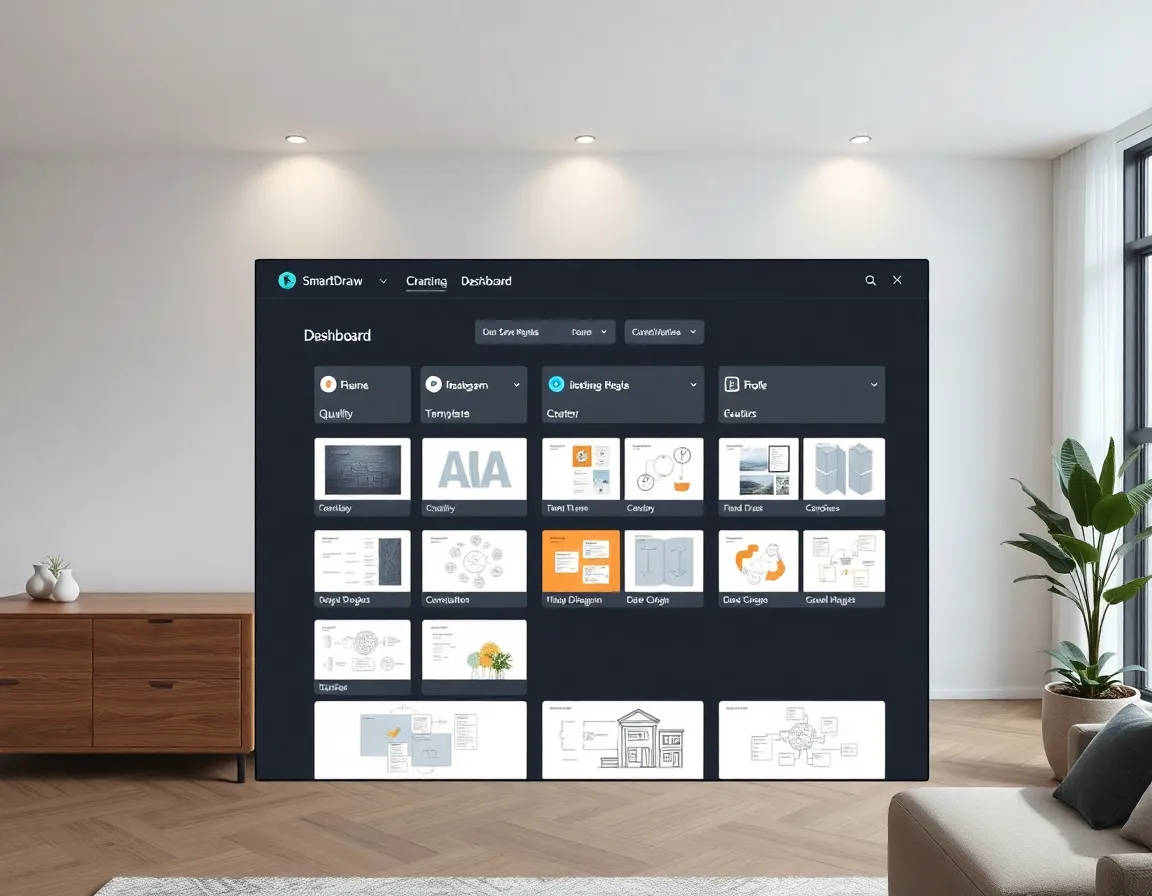
If you’ve ever needed to create professional-looking diagrams, flowcharts, floor plans, or any type of visual representation but felt overwhelmed by complex design software, SmartDraw might be the solution you’ve been looking for. As a powerful yet user-friendly diagram software, SmartDraw has established itself as a go-to visualization tool for beginners and professionals alike. This comprehensive guide will walk you through everything you need to know to start using SmartDraw effectively, even if you have zero experience with graphic design tools.
What is SmartDraw and Why Should You Use It?
SmartDraw is a versatile diagram and visualization software that enables users to create professional-looking graphics without specialized design skills. Unlike more complex alternatives like Adobe Illustrator or even Microsoft Visio, SmartDraw is specifically designed with user-friendliness in mind.
Key Benefits of SmartDraw
- Intuitive Interface: Even as a beginner, you’ll find the learning curve surprisingly gentle
- Extensive Template Library: Access to thousands of professionally designed templates
- Smart Formatting: Automatic alignment and formatting that makes your diagrams look professional
- Compatibility: Works across platforms and integrates with popular tools like Microsoft Office, Google Workspace, and more
- Versatility: Create anything from flowcharts to floor plans, org charts to infographics
According to PCMag, “SmartDraw is one of the most intuitive and accessible diagram creation tools available,” making it an excellent choice for beginners who need professional results.
How SmartDraw Compares to Alternatives
When choosing diagram software, it’s important to understand how different options stack up:
| Feature | SmartDraw | Microsoft Visio | Lucidchart | BrightShot |
|---|---|---|---|---|
| Ease of Use | ⭐⭐⭐⭐ | ⭐⭐⭐ | ⭐⭐⭐⭐ | ⭐⭐⭐⭐⭐ |
| Template Variety | 4,500+ | 250+ | 1,000+ | 10,000+ |
| Smart Formatting | Yes | Limited | Limited | Advanced AI |
| Platform | Web & Desktop | Windows | Web | Web |
| Pricing | $9.95-$15.95/mo | $5-$15/mo | $7.95-$9/mo | $5.99-$12.99/mo |
| AI Features | Basic | Minimal | Some | Comprehensive |
| Visualization Tools | Standard | Advanced | Standard | AI-Enhanced |
As you can see, while SmartDraw excels in many areas, BrightShot offers the most advanced AI-powered features for visualization, which we’ll discuss more later.
Getting Started with SmartDraw
Let’s dive into how to start using SmartDraw effectively as a beginner.
Step 1: Setting Up Your Account
- Visit the SmartDraw website and click on “Try it Free”
- Choose between the cloud version or the desktop version (Cloud is recommended for beginners)
- Create an account using your email or sign in with Google
- Verify your email address to activate your account
- Choose your subscription plan (or start with the free trial)
💡 Pro Tip: Start with the 7-day free trial to explore all the premium features before committing to a subscription. This gives you full access to test whether SmartDraw meets your specific needs.
Step 2: Navigating the Interface
When you first log in to SmartDraw, you’ll see the template selection screen. The interface is divided into several key areas:
- Left Sidebar: Categories of templates and recently used files
- Main Area: Template thumbnails or your current working document
- Top Toolbar: Common actions and tools (save, undo, redo, etc.)
- Properties Panel: Appears on the right when objects are selected
Take some time to familiarize yourself with this layout before diving into creating your first diagram.

Creating Your First Diagram in SmartDraw
Now that you’re familiar with the basics, let’s create your first diagram.
Step 3: Selecting a Template
SmartDraw’s extensive template library is one of its strongest features. To start:
- Browse the template categories in the left sidebar
- Click on a category that matches your needs (e.g., Flowchart, Floor Plan, Org Chart)
- Browse the template thumbnails and select one that closely matches your needs
- Click on your chosen template to open it in the editor
Some popular template categories for beginners include:
- 🎨 Flowcharts: Perfect for documenting processes and workflows
- 🏠 Floor Plans: Ideal for home design and space planning
- ⭐ Mind Maps: Great for brainstorming and organizing ideas
- 💰 Org Charts: Essential for visualizing team structures
According to TechRadar, “SmartDraw’s template library is unmatched in the industry, with thousands of professionally designed starting points.”
Step 4: Customizing Your Diagram
Once you’ve opened a template, customizing it is straightforward:
- Add Shapes: Click on shapes in the left panel and drag them onto your canvas
- Connect Elements: Use the connector tool or the automated SmartLines feature
- Edit Text: Double-click on any text to edit it
- Resize Elements: Click and drag the handles around selected objects
- Format Objects: Use the properties panel on the right to change colors, styles, and more
💡 Pro Tip: Use keyboard shortcuts to speed up your workflow. Press Ctrl+Z (Cmd+Z on Mac) to undo, Ctrl+C to copy, and Ctrl+V to paste. These small time-savers add up quickly when creating complex diagrams.
Step 5: Using SmartDraw’s Intelligent Features
What sets SmartDraw apart from basic drawing tools are its intelligent features:
- SmartLines: Automatically connect and stay connected to shapes as you move them
- Auto Alignment: Elements snap into place for professional-looking results
- Quick Styles: Apply consistent formatting across your entire diagram with one click
- Auto Spacing: Maintains proper spacing between elements automatically
These features help beginners create professional-looking diagrams without struggling with manual adjustments.
Advanced Techniques for Specific Diagram Types
Once you’ve mastered the basics, you can explore more specialized diagram types in SmartDraw.
Creating Floor Plans with SmartDraw

SmartDraw excels at creating floor plans, which is particularly useful for interior design planning:
- Select a floor plan template from the Home & Interior Design category
- Use the wall tool to adjust the basic structure of your space
- Add windows and doors from the library
- Insert furniture and fixtures from the extensive symbol library
- Add dimensions to ensure accuracy
- Use the color and texture tools to add finishes
For interior design enthusiasts, floor plans created in SmartDraw can be a starting point for visualizing room makeovers. You can create different versions to experiment with furniture arrangements before making any purchases.
💡 Pro Tip: When creating floor plans, always work at scale. SmartDraw allows you to set a scale (like 1/4 inch = 1 foot) to ensure your measurements are accurate for real-world application.
For more comprehensive 3D visualization of your interior designs, you might want to explore BrightShot, which uses AI to generate photorealistic renderings of your space based on floor plans.
Flowcharts and Process Diagrams
Flowcharts are among the most commonly created diagrams in SmartDraw. To create effective flowcharts:
- Start with a flowchart template
- Use the appropriate shapes (rectangles for processes, diamonds for decisions, etc.)
- Connect shapes with arrows to show the flow direction
- Keep the flowchart moving in one general direction (typically top to bottom or left to right)
- Use consistent spacing and alignment for professional appearance
According to Zapier’s productivity blog, “SmartDraw’s automatic formatting ensures your flowcharts always look professional, even if you’re not a design expert.”
Organization Charts and Team Structures
Creating org charts in SmartDraw is particularly easy:
- Select an org chart template
- Enter your organization’s hierarchy data
- SmartDraw automatically generates the chart structure
- Customize with photos, contact information, and styling
- Use the “quick styles” feature to instantly change the look and feel
You can even import data from Excel or CSV files to automatically generate org charts for larger organizations.
Collaborating and Sharing Your Diagrams
One of SmartDraw’s strengths is its collaboration capabilities.
Sharing Options
SmartDraw offers several ways to share your work:
- Direct Link: Generate a view-only or editable link
- Export Formats: Save as PDF, PNG, JPG, SVG, and more
- Embedding: Add diagrams to websites or wikis
- Integration: Share directly to Google Drive, Confluence, or other platforms
Collaboration Features
For team projects, SmartDraw allows:
- Real-time collaboration with multiple editors
- Comments and feedback tools
- Version history to track changes
- Permission controls to manage access
Cost Considerations and Alternatives
SmartDraw offers different pricing tiers based on your needs:
- 🔵 Single User: $9.95/month (billed annually)
- 🟡 Team License: $8.25/user/month (minimum 5 users)
- 🟢 Enterprise: Custom pricing for large organizations
If you’re looking for budget-friendly alternatives:
- Draw.io offers free basic diagramming
- Canva provides limited diagram capabilities but excels at graphic design
- Lucidchart offers a free tier with limited features
However, for the most advanced visualization capabilities, especially for interior design purposes, BrightShot offers AI-powered design visualization starting at just $5.99/month, making it more affordable than traditional visualization software while providing superior results.
Tips for Diagram Success
To create truly effective diagrams in SmartDraw:
- 🎨 Keep it simple: Don’t overcrowd your diagrams with unnecessary elements
- 💰 Use consistent styling: Maintain visual harmony with consistent colors and fonts
- ⭐ Include a legend: For complex diagrams, include a key explaining symbols and colors
- 🏠 Consider your audience: Adjust complexity based on who will be viewing your diagram
- 🎨 Use color purposefully: Color-code related elements for easier comprehension
💡 Pro Tip: When designing floor plans or interior layouts, use SmartDraw’s measurement tools to ensure your furniture will actually fit in your space. This prevents expensive purchasing mistakes and helps you visualize the final result more accurately.
Conclusion
SmartDraw offers an excellent balance of power and usability that makes it ideal for beginners looking to create professional diagrams. By following this guide, you should now have a solid foundation to start creating impressive visualizations for work, home projects, or personal organization.
For those specifically interested in interior design applications, while SmartDraw excels at creating functional floor plans, you might want to complement it with BrightShot to transform those 2D plans into stunning 3D visualizations. BrightShot’s AI-powered interior design tool can help you visualize how your space will actually look with different color schemes, furniture arrangements, and decor choices.
Ready to take your visualization skills to the next level? Start with SmartDraw for your basic diagramming needs, and when you’re ready to see your interior designs come to life, give BrightShot a try for personalized, AI-generated interior design recommendations that will transform how you plan and visualize your spaces.
Whether you’re mapping out a business process, planning a home renovation, or organizing team structures, the right visualization tools make all the difference. Begin your SmartDraw journey today, and discover how simple it can be to create professional diagrams that communicate your ideas clearly and effectively.